 Polyglot
Words that travel.
Generate subtitles from audio or video, translate into multiple languages and review every line. Start from a recording, a supported video link or subtitles you already have.

Create and translate subtitles. Turn recordings into readable text. Refine video and make it ready to share. One app, with the processing on your Mac.
Apple Silicon · macOS 14.4 or later
Try unlimited files for 7 days. Pro is €29.99 once.
Inside Polyglot
Start in Create or Translate. Find your subtitle tracks in Files, open their context in Projects, and refine footage in Enhance video.
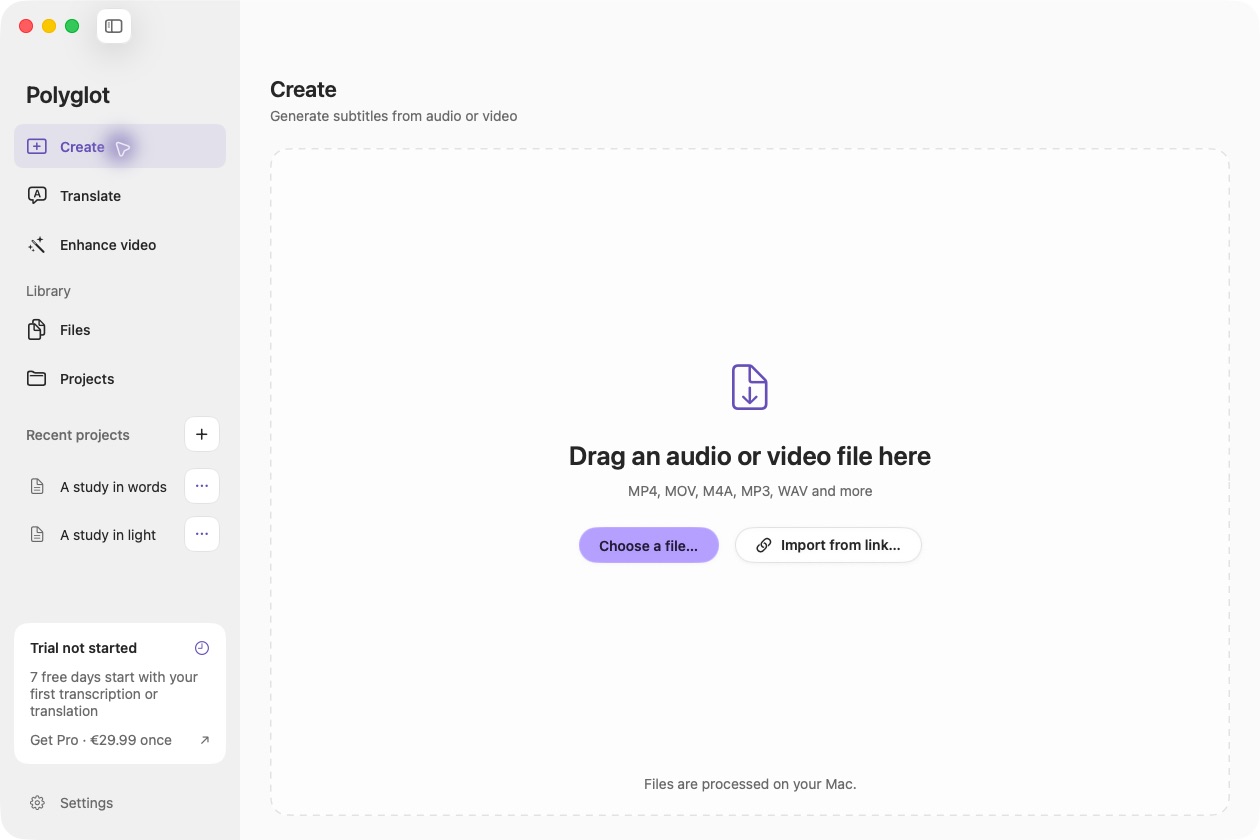
Import audio or video and generate the original subtitles. Add translation when you need it.
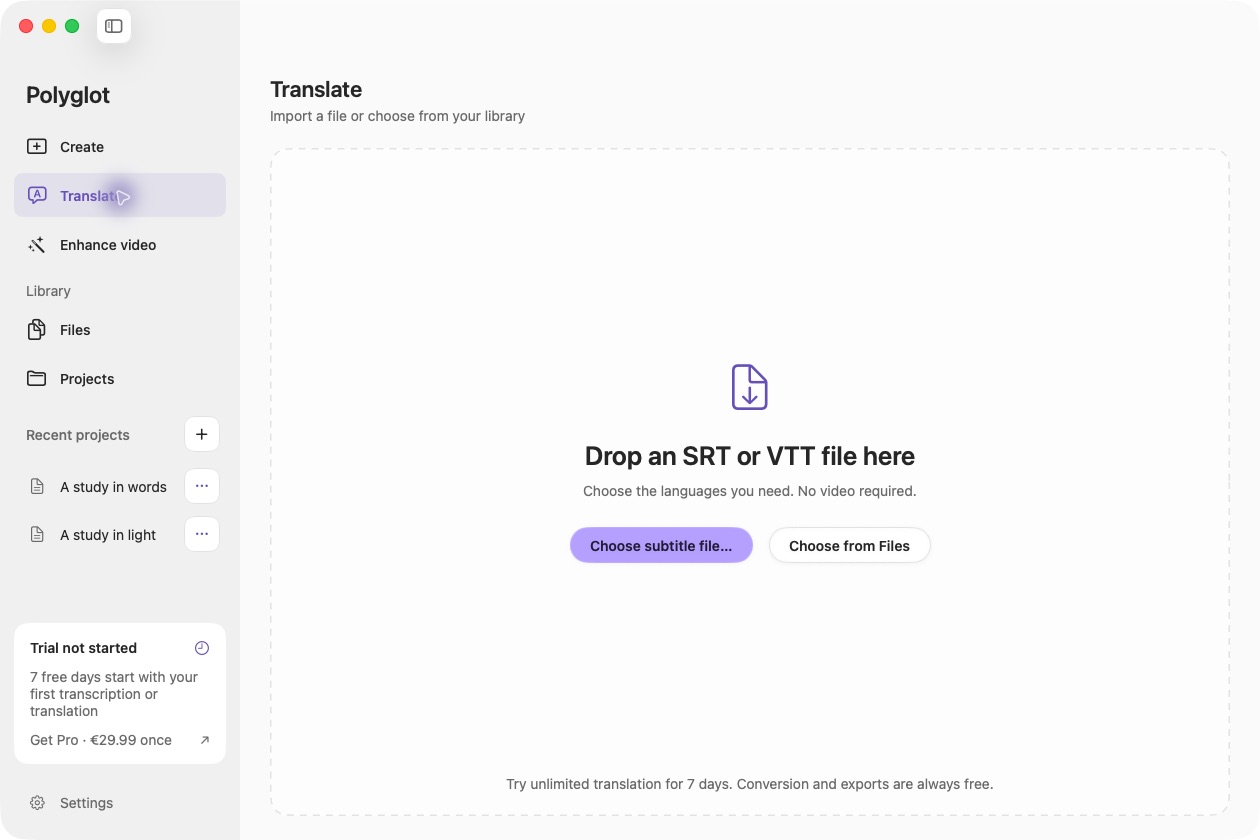
Start with an existing SRT or VTT, or choose a saved subtitle track.
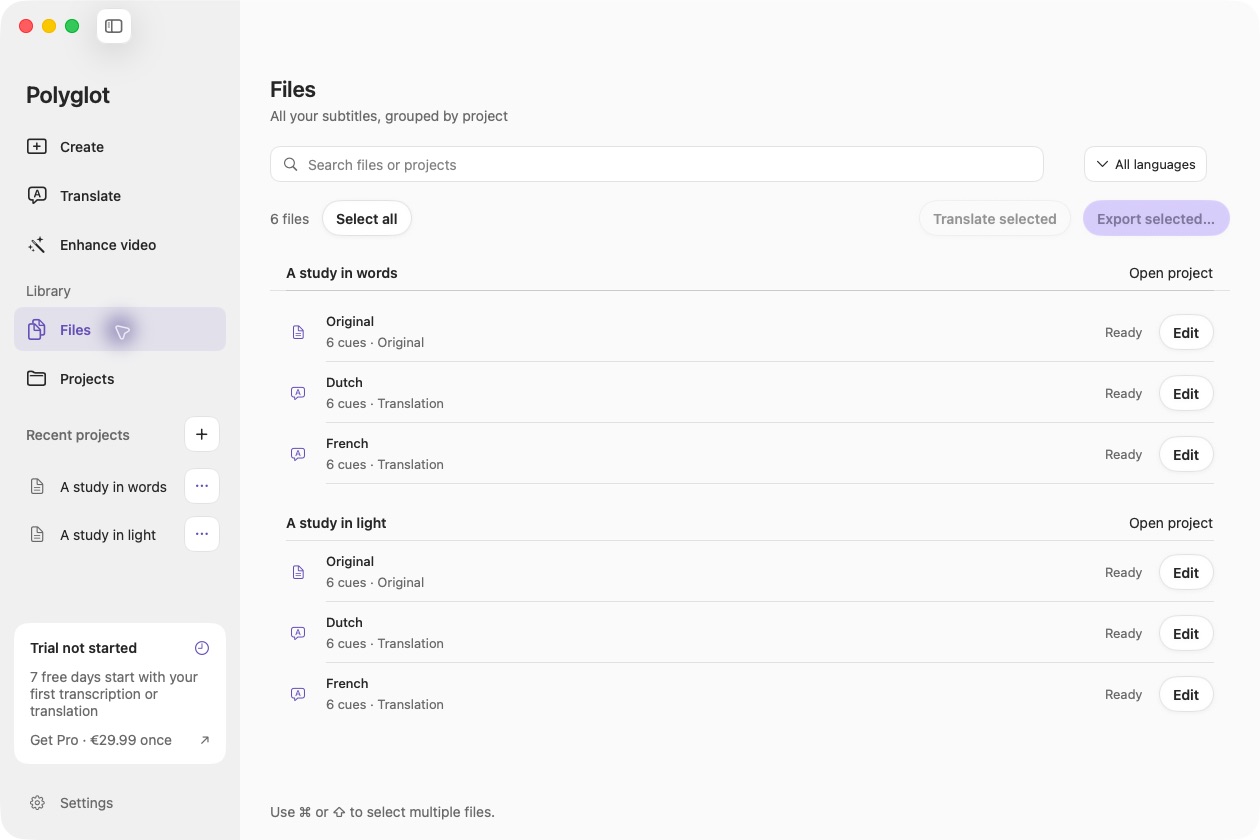
Search saved tracks, filter by language and select a batch to translate or export.
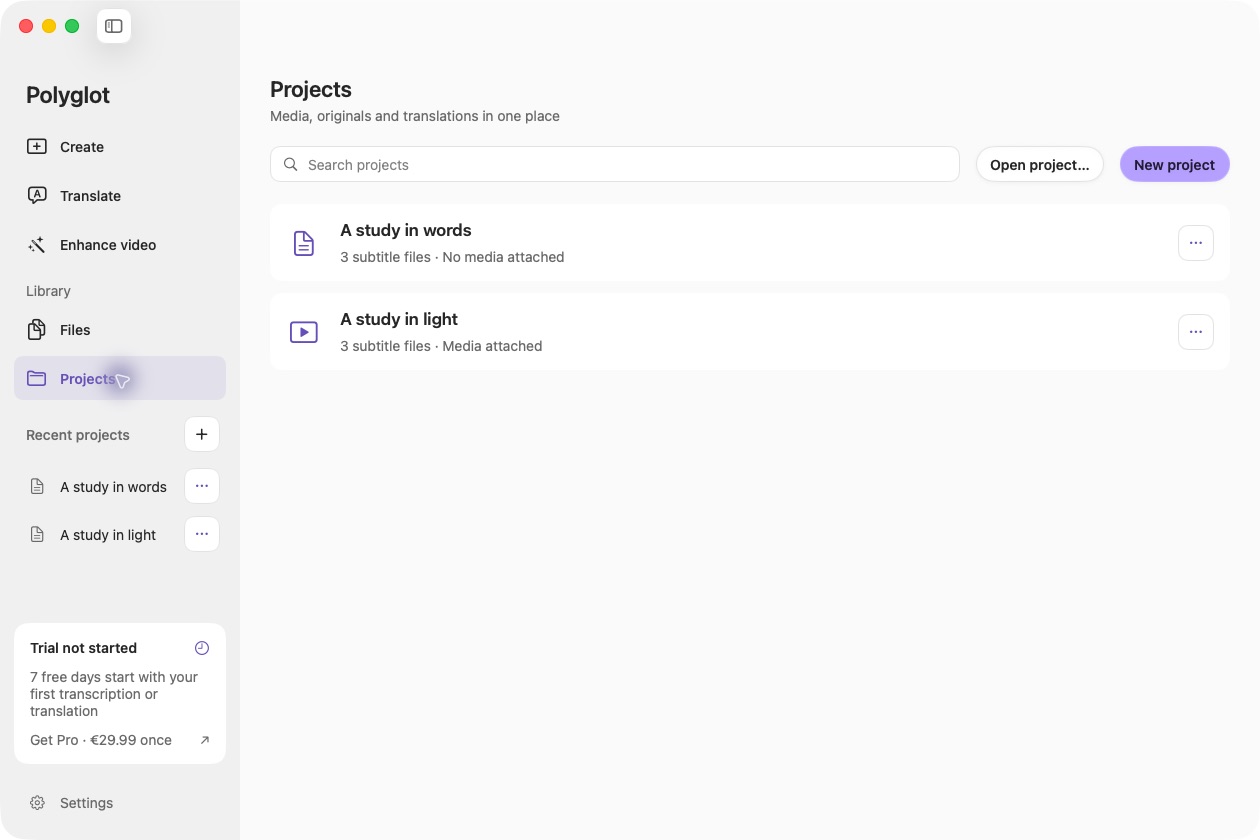
Keep media and subtitle languages together. Open a project straight into its timeline.
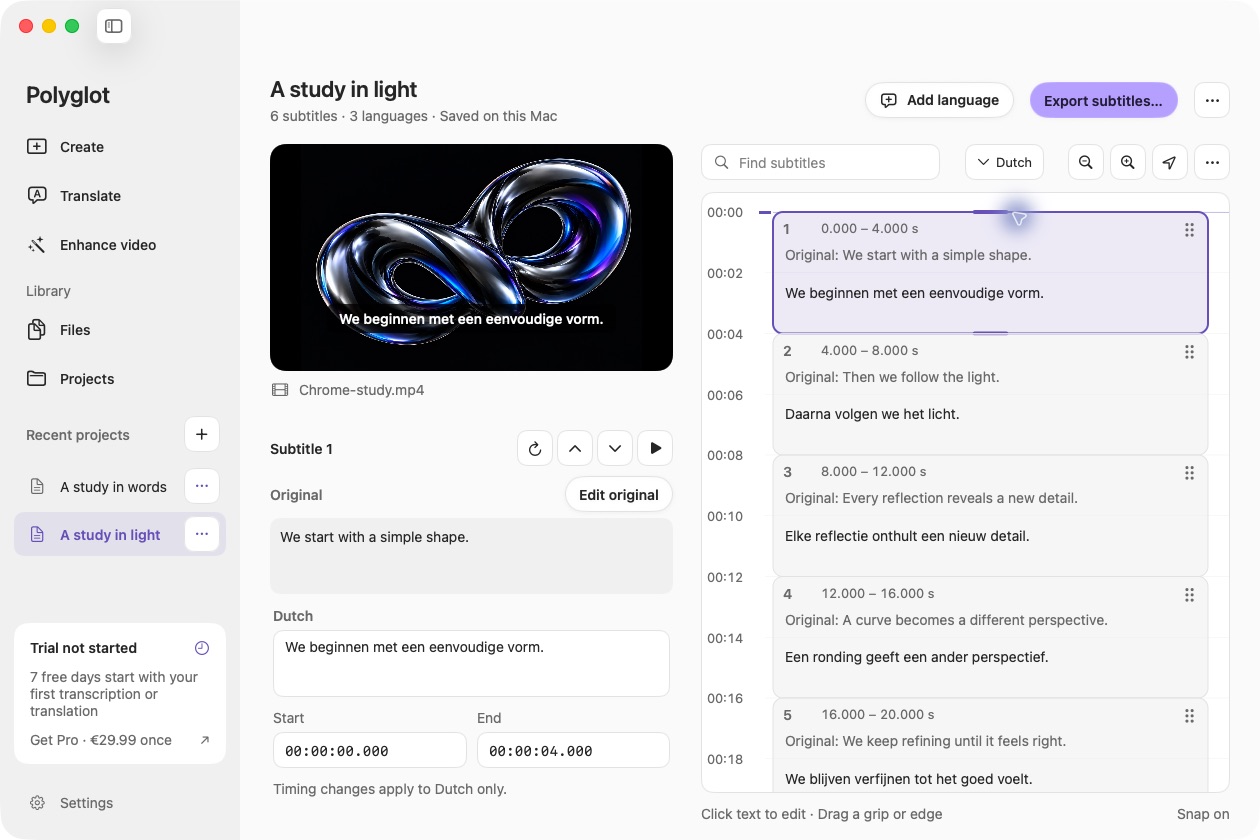
Keep media in view, edit words directly and adjust timing for each language.
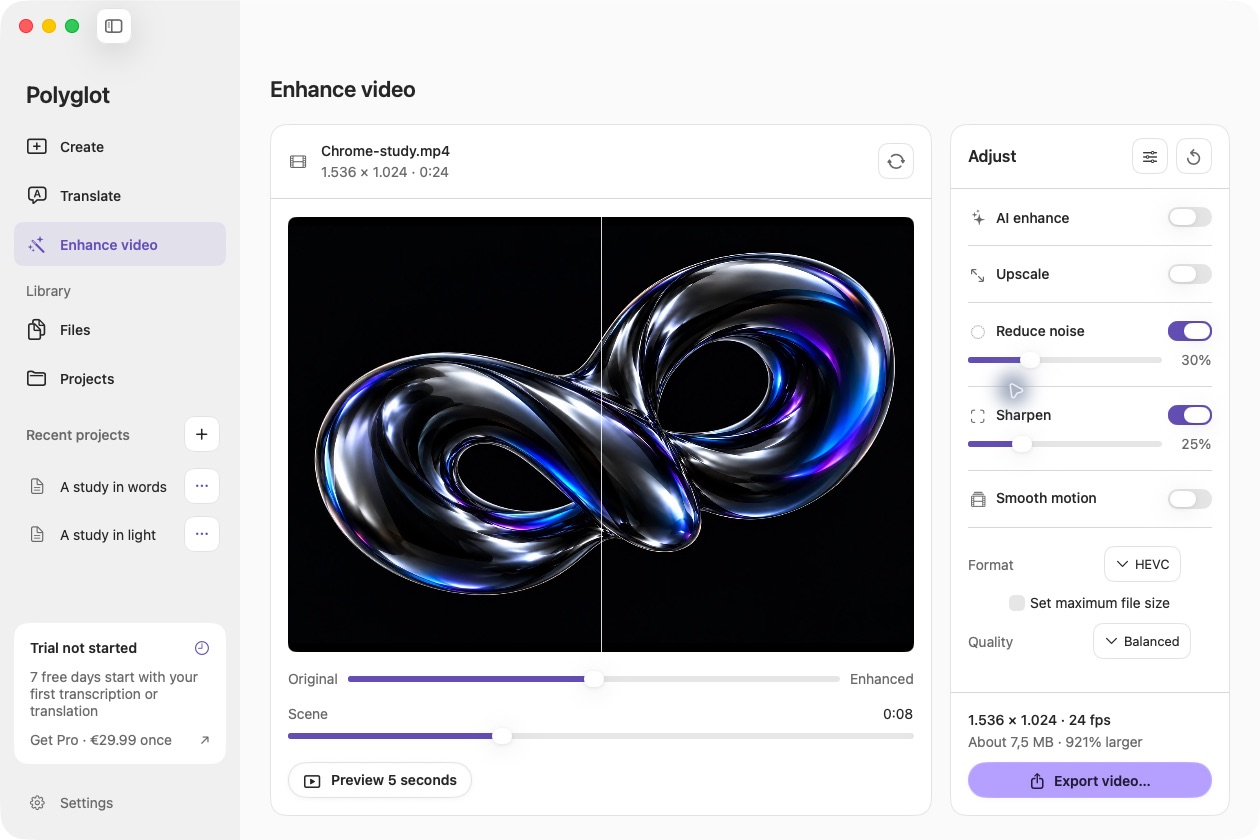
Adjust picture and export settings, then preview before saving a new video.
Polyglot 1.11 · Prepared sample project
Start with the job in front of you. Keep the tools for what comes next.
Generate subtitles from audio or video, translate into multiple languages and review every line. Start from a recording, a supported video link or subtitles you already have.
Find original subtitles, imported files and translations together in Files. Work across projects with batch translation and export, then open any project to manage its media and languages.
Refine resolution, noise, sharpness and motion. Compare previews, try optional local AI models and compress a full video to a checked maximum size in MB.
New · Files & Projects
Find every saved track, grouped by project. Search, filter by language and select a batch to translate or export. Open a project to keep its recording and subtitles together.
Conversion, timing adjustments and exports are always free.
Video preparation
Choose a maximum file size in MB. Preview the trade-off and export a new MP4. Polyglot verifies the finished file and keeps your original.
The size limit never cuts your video short.
Transcription, translation and video enhancement run locally. Download the required models once, then process local files offline. Subtitle conversion and text export need no AI model.
See when Polyglot connects to the internetAn Apple Silicon Mac running macOS 14.4 or later, at least 8 GB of memory, and approximately 2 GB for the speech model, with another 5 GB when adding translation. SeedVR2 enhancement requires at least 16 GB of memory. File conversion does not require AI models.
Media and subtitle processing runs locally after the required models are downloaded. Model downloads, video-link imports, purchase, activation and update checks use the internet. See the privacy page for connection details.
Speech recognition supports 25 European languages, including English, Dutch, French, German and Spanish. See the full transcription and translation language lists. Translation targets are selected separately; they do not add support for recognizing speech in those languages.
Yes. Open an SRT or WebVTT to edit, translate or convert it. Export SRT, VTT, readable TXT or a bilingual source-and-translation pair. You can optionally attach the matching video for review.
Your trial starts with your first transcription or translation job and includes unlimited files and languages for seven days. No account or payment details are needed. Afterward, Pro keeps transcription and translation available for €29.99 once. Editing, conversion, text export, timing adjustments and video tools stay free.
A successful maximum-size export fits the byte limit you entered. Services can also restrict format, duration or resolution. Check their requirements and leave some size headroom.
Use Check for Updates… in the Polyglot menu for signed updates. If an older version has no updater, install the current release manually once.
Polyglot for Mac
Subtitles, translations, transcripts and video. Right on your Mac.
Apple Silicon · macOS 14.4 or later · 7-day free trial