Bring the text into focus
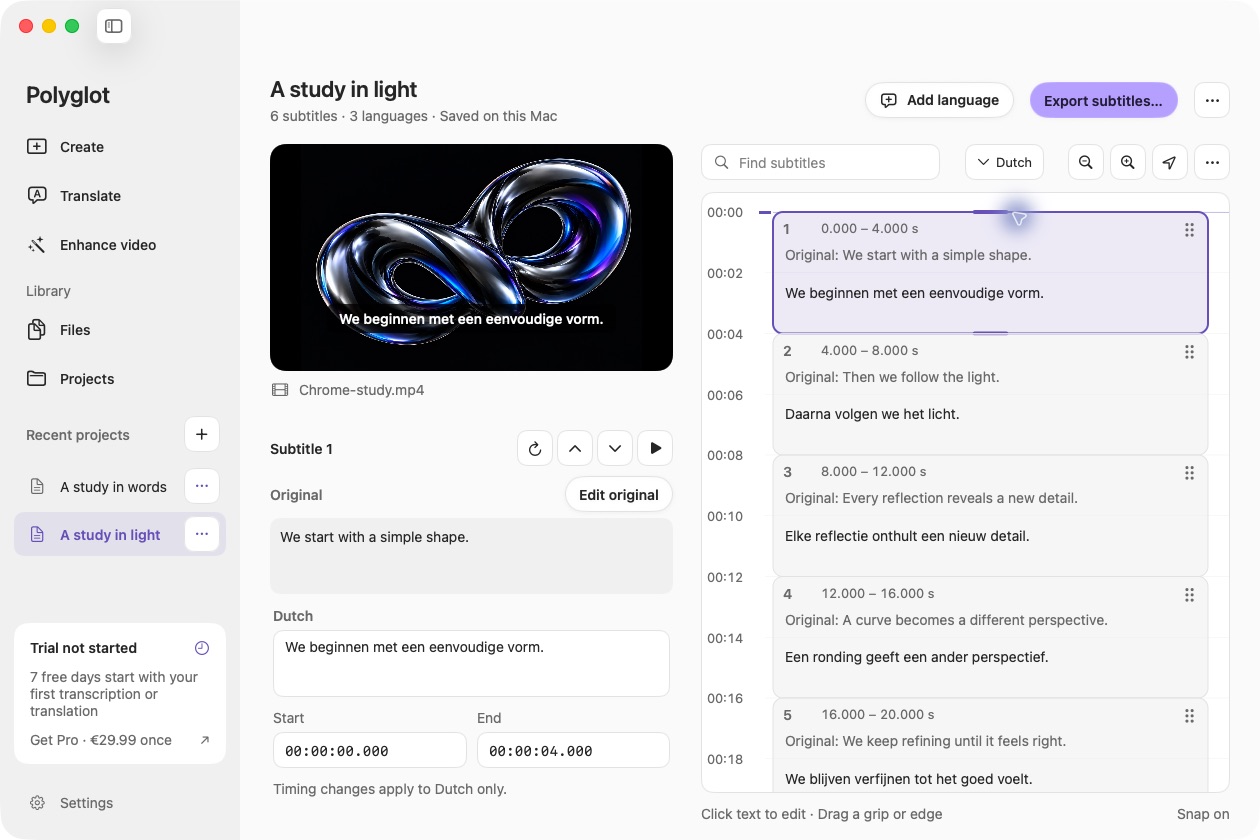
Find a subtitle track in Files and choose Edit, or open its project and select a language. Search the vertical timeline and click subtitle text to edit it directly. Media stays visible when attached; subtitle-only projects work without it. Drag a cue’s grip or edges, or enter exact Start and End times, to adjust that language independently.
Review translations deliberately
Keep the original visible while switching between translations. Use the downloaded model to regenerate one original line from its audio or re-translate one line, then review the replacement before applying it. Source edits preserve completed translations and mark affected lines for review.
Make a clean handoff
Use Add language to create another track and Export subtitles to save your work. Export a selected track or all completed tracks as SRT, WebVTT or TXT. Files supports exports across projects. Bilingual output pairs the original with one completed translation, using that translation’s timing.
 Polyglot