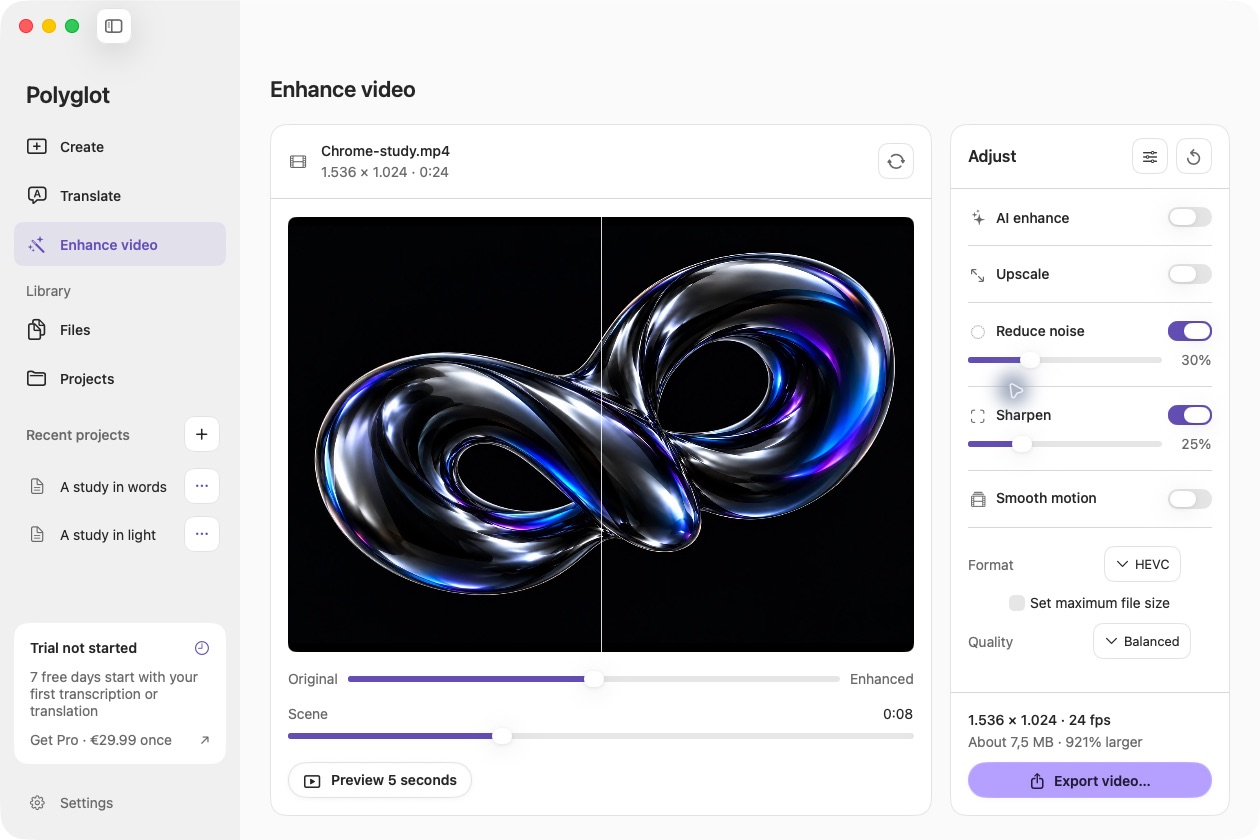
Set your size budget
Open Enhance video, choose a local video and enable Set maximum file size. Enter the maximum in MB; one MB means 1,000,000 bytes. Use a little headroom below your destination’s stated limit, since services may apply their own rules.
Choose the trade-off
The bitrate budget includes the full duration, audio and container overhead. Smaller budgets reduce picture quality; resolution and H.264 or HEVC affect the result. Preview a representative scene. If the budget is too small for the duration and audio, choose a larger size.
Save a checked file
Polyglot measures the completed MP4 and may make up to three lower-bitrate adjustments. It saves only an output within your requested maximum. If it cannot meet the limit, it reports the failure and leaves your original intact. The video is never cut short to meet the target.
 Polyglot