Explore Polyglot

Get Polyglot

For Apple Silicon · macOS 14.4+

Local AI. Your Mac.
Create Subtitles from Video Links on Mac
Polyglot

A video link.
A local subtitle project.

Bring a supported video into your local subtitle workflow. Download the recording first, then transcribe, translate and review it on your Mac.

Download for Mac

Apple Silicon · macOS 14.4 or later · 3 free files

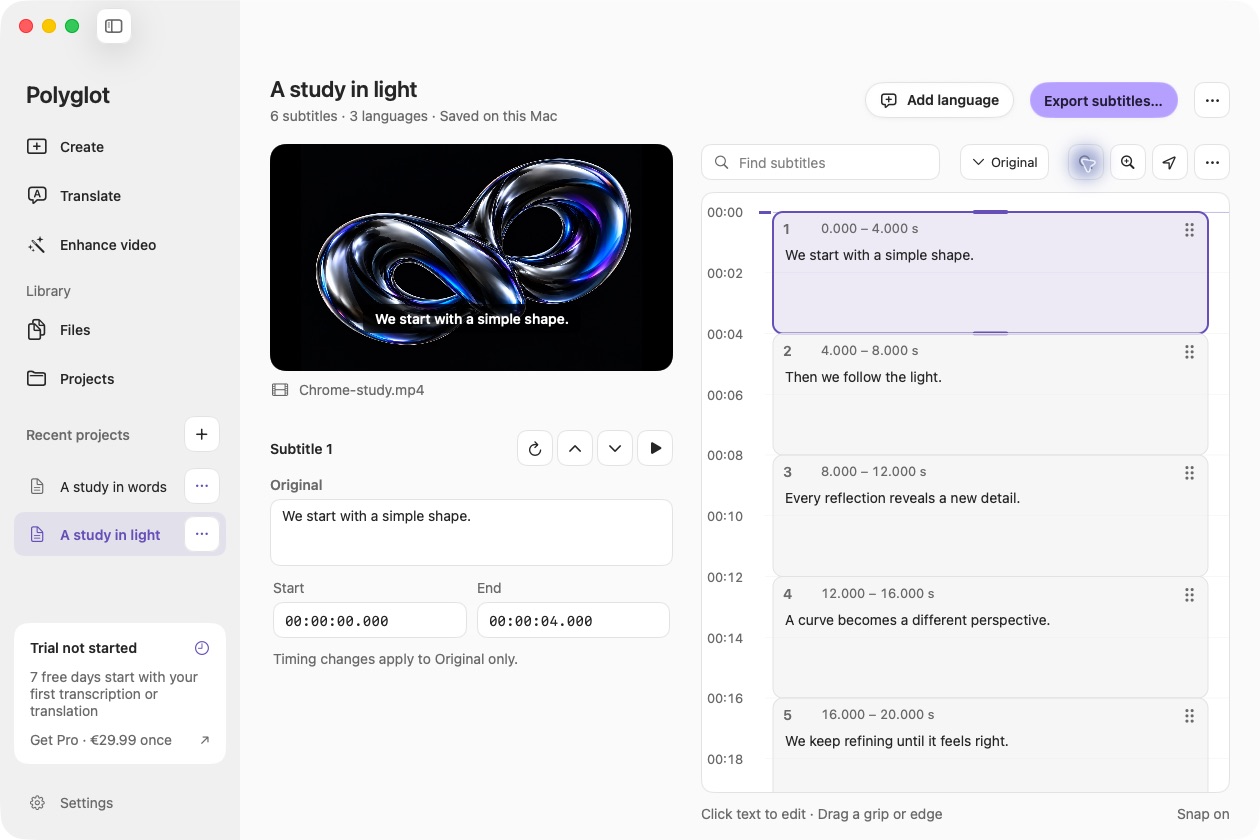
Actual Polyglot import video links workspace with a prepared sample.
Actual Polyglot app · Prepared sample project · Select image to view full size
01

Import a supported link

Choose Import from link and paste an accessible YouTube, Vimeo or other supported video URL. Only use videos you own or are authorized to download and process. Site support can change and an accessible page does not guarantee an available download.

02

Keep the downloaded file

The video is saved in Downloads. An internet connection is required to retrieve it; subtitle inference then runs locally after model setup. Model setup and download failures can be retried without counting a completed transcription.

03

Review before sharing

Choose target languages, create subtitles and check the draft alongside playback. Export SRT tracks for your authorized publishing workflow. This feature does not bypass private access, passwords, DRM or live-stream restrictions.

Before you begin.

Can I transcribe a private or DRM-protected video?

No. Use a local file you are authorized to process instead.

Is the downloaded video deleted after transcription?

No. The download remains in your Downloads folder, and the subtitle project references it locally.

Does downloading use a free file?

A successful saved transcription consumes the file allowance. The app checks available allowance before starting a new link download.

Keep creating.

Polyglot for Mac

Create your first subtitles.

Import a file, review the text, and export SRT.

Download for Mac

Apple Silicon · macOS 14.4 or later · 3 free files