 Polyglot
The Polyglot journal
How to check which subtitles are inside an MP4
An MP4 can offer English in its subtitle menu and still show Dutch. Here’s how to trace each menu choice back to the text inside the movie before you hand it over.
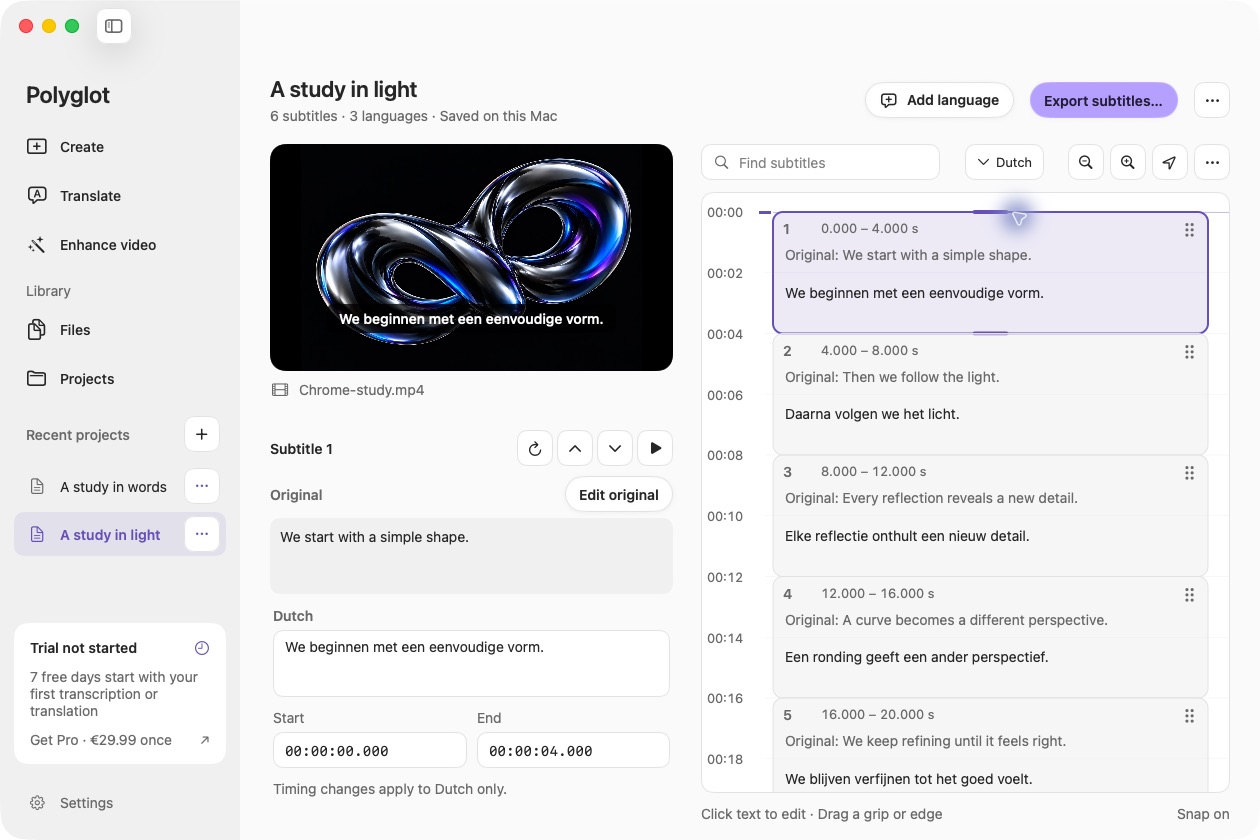
Polyglot 1.11 · Prepared sample project
Open the movie on its own
A client asks for one MP4 they can take to a workshop. The instructor will show it once with English subtitles and once with Dutch. On your Mac the movie plays with both languages available. Will the same choices travel on the client’s USB drive? Copy just the finished MP4 into an empty folder, open that copy in a fresh player session and select each language. Read an identifiable line in each. Then turn subtitles off and replay the same passage.
This catches a surprisingly easy handoff mistake. A player can find a subtitle file sitting beside the source movie. If that file supplied the words you saw during review, sending only the movie can leave the instructor without them. Use a local player with automatic online subtitle retrieval disabled for this check. Keep the original folder and its reviewed subtitle files intact.
Identify each track before encoding
For a workshop film you own, pick a short passage with wording that clearly distinguishes each language. A person’s name, a number or an identical loanword makes a poor test. Record the time and the expected words alongside the final cut’s filename. Add a second check near the end of a real film so a subtitle file from an earlier cut is easier to spot.
Suppose an instructor demonstrates opening a case. The English line at one second is “Lift the latch.” The Dutch line is “Til de grendel op.” At four seconds the instructor says “Lower the lid.” In Dutch that is “Laat het deksel zakken.” The two cues fit into a seven-second exercise. On a longer film, choose an equally recognizable action in the final scene.
In Polyglot you can review the English and Dutch against the picture and export a separate SRT for each. Open both exported files and confirm the two lines. Keep the approved files with the master. A bilingual export puts both languages in the same cues, which would give the instructor a different viewing experience.
Package the two SRTs as selectable tracks
HandBrake accepts separate SRT files in its Subtitles tab. Start from the approved picture and add each SRT as its own track. For each row, check the source file, language and character encoding. Leave burn-in off for both. Check the track list for any other subtitles inherited from the source or preset, and save the MP4 under a new name. Polyglot prepares the timed text. HandBrake produces the movie in this workflow.
A default language is a playback preference. Even if the movie opens with the expected English line, the Dutch selection still needs its own check. Write down which subtitle choices the recipient requested before opening the exported movie. That makes an extra track, a missing choice or a pair of indistinguishable labels easier to catch.
Read the embedded language tags
If you have FFmpeg’s command-line tools, ffprobe can list the subtitle streams in the movie itself. In Terminal, change to the folder containing the delivery copy. The example uses a file called Latch.mp4. Each output row identifies one embedded stream and its declared language. The index is the stream’s position within this particular file.
The example MP4 has two subtitle streams. The two rows read “stream|index=1|tag:language=nld” and “stream|index=2|tag:language=eng”. Stream 1 declares Dutch and stream 2 declares English. Their order alone tells you nothing about the words. If the command succeeds and prints no rows, it found no subtitle stream. If it reports a file or format error, resolve that error before drawing a conclusion.
ffprobe -v error \
  -select_streams s \
  -show_entries \
  stream=index \
  -show_entries \
  stream_tags=language \
  -of compact Latch.mp4
Check what the English choice actually contains
Here is a failure you can miss by counting rows. In the seven-second MP4 used for this example, the two text streams have deliberately swapped language tags. The two stream rows above come from that file. The command below asks FFmpeg to print the text stream tagged English as SRT. It reads the MP4 and writes the result to Terminal.
Cue 1 runs from 00:00:01,000 to 00:00:03,000 and reads “Til de grendel op.” The English-tagged stream contains Dutch. Both subtitle streams survived packaging, but selecting English points to the wrong words. Changing the order of the menu entries would still leave the English label attached to the Dutch cue. Trace each input file back to its language setting, correct the pair in the encoding job and make a new delivery copy. Repeat the check for both eng and nld. This command assumes exactly one text subtitle stream with the selected tag. For duplicate or missing tags, use the inventory’s absolute stream index, such as -map 0:2, to inspect each one.
ffmpeg -v error -i Latch.mp4 \
  -map 0:s:m:language:eng \
  -f srt -
Sign off in the instructor’s player
Open the corrected movie from the delivery folder on the equipment the instructor will use. Select English and seek to the latch. Select Dutch and replay it. Turn subtitles off and check that the picture clears. Repeat at the closing cue. If both streams have the right text when extracted but a player offers only one choice, try that same standalone file in a second player. That narrows the investigation to playback support or settings before anyone rewrites a translation.
Record the filename, the player and the two lines you actually saw. If a learning platform transcodes the upload, repeat the language and off checks on its published player. The copy you inspected and the video your audience opens can be different files. Keep the approved SRTs so you can deliver separate tracks if the receiver requires them.
Sources & further reading
HandBrake documentation · Subtitle sources and selectable output
FFmpeg · ffprobe stream selection and output fields
FFmpeg · Stream specifiers and manual stream mapping
Published by Polyglot using an AI-assisted editorial workflow. How we prepare and update our guides.
Keep exploring.
Try it on your Mac.
Find the right tools for your words and video, with processing on your Mac.
Download nowApple Silicon · macOS 14.4 or later