 Polyglot
The Polyglot journal
Check a Kaltura caption correction in transcript search
A student who misses a term in a lecture can search the transcript and jump back to hear it. After correcting a caption in Kaltura, try that same trip from the course page. One well-chosen word can tell you which file the student sees and whether it leads to the right passage.
Polyglot 1.11 · Prepared sample project
Choose a correction you can hear
Suppose you maintain a course on printmaking. In a recording the instructor says “brayer,” the roller used to spread ink. The English caption says “briar.” A student revising for a practical searches for the name of the tool, gets no match and has to scrub through the demonstration. The correction has two jobs. The right word should appear while the instructor speaks, and a student searching for it should land at the demonstration.
Open the exact lesson as a viewer with permission to see it. Note the course page, video entry, language and elapsed time when the instructor picks up the roller. Play a few seconds on either side. Check the term against the audible line and the instructor’s materials. Choose a second, unchanged word later in the same cut as a control. If the opening was trimmed after captioning, even a correctly spelled word could send a student to the wrong shot.
Make a small check sheet before editing
Here is an invented example for a single English track. Search one word at a time in the player’s transcript panel. For the old spelling, check whether it still appears at the affected passage. Another lesson might legitimately use “briar” for a different object.
English · Printmaking, cut 3
04:12  heard: Ink the brayer.
       old:   Ink the briar.
       new:   Ink the brayer.
11:08  Lift the stencil.

brayer → roller demo
stencil → stencil lift
Correct the file associated with this entry
Use an entry you are authorized to edit. In Kaltura’s Rich Media CMS, open the entry’s Captions tab. Check which row carries the English captions, whether it is available in the player, and whether there is another English row. Download a copy for your revision history before changing anything. Record its language, label and the entry it belongs to. Similar filenames on two semesters’ recordings make it easy to edit the wrong lecture.
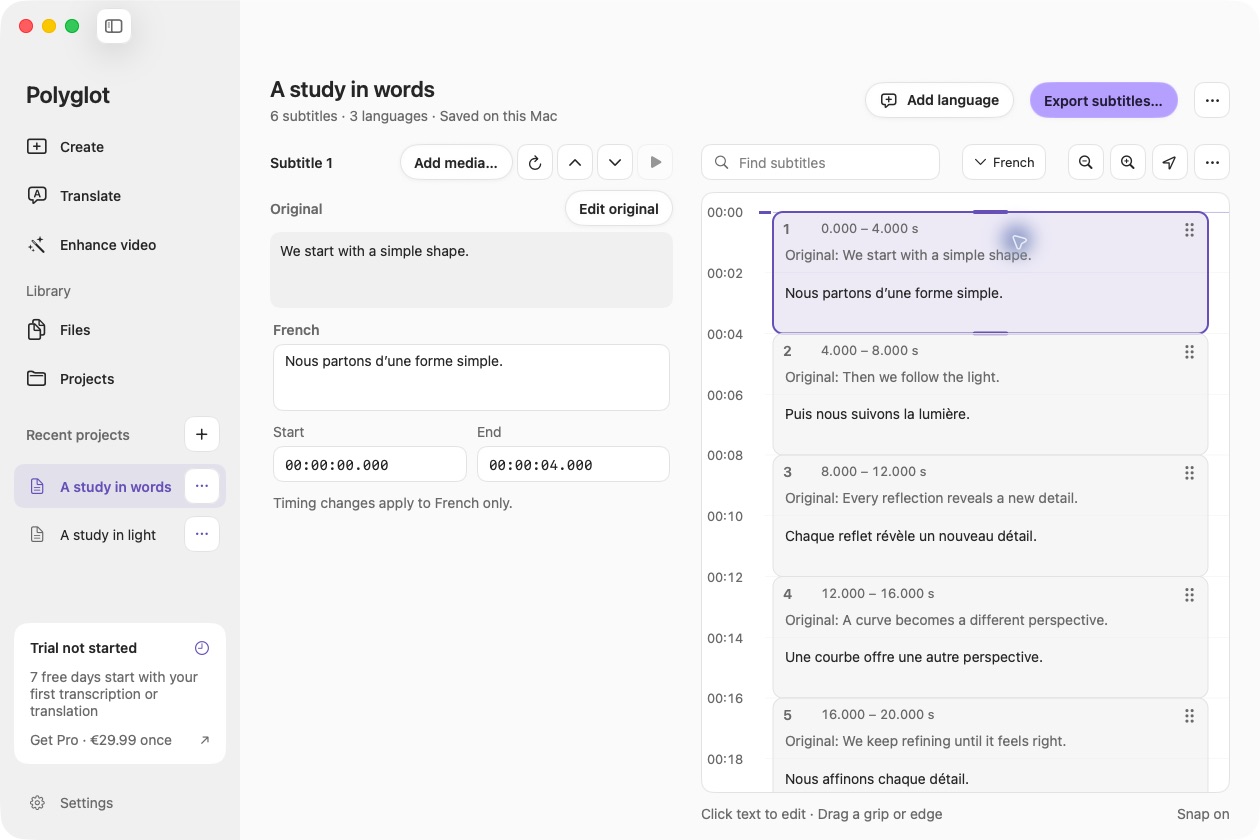
For one spelling change, the row’s three-dot menu offers the Closed Captions Editor. If a colleague needs to review an SRT offline, download the SRT and open it in Polyglot. Select the cue at 04:12 and edit the spelling. Leave the cue boundaries in place if the words already align with the speech. Replay with an authorized copy of the matching picture if available. Export a newly named SRT, reopen it and read the changed cue and its neighbors. The original download gives you something to compare against if a second change slips in.
Return the reviewed file to the entry through Kaltura. Its documented offline workflow uses Add Caption for the upload. That can leave multiple files for one language. Kaltura says the player displays the file with the highest accuracy setting for that language. A newer filename alone tells you little about which English text the viewer gets. Preview the candidate row and inspect the language, label, accuracy and Display on Player setting. If two rows appear equally eligible, have the entry owner resolve which should be offered and retain the prior file for recovery. Avoid assigning an invented accuracy score to win the selection.
Try the student’s route through the embedded player
Reopen the actual course embed in a viewer session. Select English in the captions control and play the demonstration. Read the overlay while listening for “brayer.” Then open the transcript panel and search for brayer. Select the matching line. Kaltura’s transcript plugin lets a viewer click a caption or focus it and press Enter to seek to its start. Listen through the line. The cue may begin a little before the tool name. The useful check is whether the student hears the explanation from that point.
Search for stencil, select its line and confirm the lift at 11:08. This catches a plausible-looking first match on a file timed for a different edit. Search for the old spelling and inspect any remaining matches. Write down the actual playback time and what you heard. A screenshot of the corrected word in the CMS cannot answer either playback question.
If the lesson has a second language, switch languages in the transcript panel. Kaltura documents that the caption language follows the transcript choice and vice versa. Use a term from the approved second-language file, then switch back to English and repeat the brayer search. If downloads are part of the lesson, download the current transcript while English is selected and check that copy too. The player administrator controls whether download is available.
Trace a failed check back to the right owner
If the overlay and transcript both show “briar,” compare the entry identifier in the course embed with the one you edited. Preview the uploaded row in the CMS. An old spelling there points to the file you supplied. A correct preview alongside an old viewer result calls for checking the active English row, its display setting and the player used by the embed before editing the text again.
If the overlay is right but the panel is missing, ask the player administrator to inspect Transcript under Accessibility & language in Player Studio for that embed’s player. Panel position and download availability are configurable. If the panel opens but a search fails, clear the search, check its selected language, and read the line at the known playback time. Record whether the text itself is wrong or whether the displayed word cannot be found by search. Those observations give support different problems to reproduce.
If both searches find the expected words but land early or late, compare the cue starts in the returned SRT with the matching video cut. A good start and a bad later jump warrant checking for an intervening edit. Keep the entry ID, cut, player location, language, search terms, expected passages and observed times with the revision. Once another reviewer can repeat both jumps from the course page, the correction is ready for students.
Sources & further reading
Kaltura · Upload and manage captions in Rich Media CMS
Kaltura · Search, switch languages and seek in the transcript
Kaltura · Enable the transcript in the player
Published by Polyglot using an AI-assisted editorial workflow. How we prepare and update our guides.
Keep exploring.
Try it on your Mac.
Find the right tools for your words and video, with processing on your Mac.
Download nowApple Silicon · macOS 14.4 or later