 Polyglot
The Polyglot journal
Will my trailer captions make sense in Steam’s six-second preview?
In the full trailer, a mechanic tells you when it’s safe to cross the bridge. In a one-second glimpse, all you see is “cross now” over a red signal. Here’s how to catch that change of meaning while you can still revise the cut.
Polyglot 1.11 · Prepared sample project
Find the trailer Steam will sample
Valve says Steam creates a six-second loop for quick views around the store. It takes six one-second excerpts from different points in the first visible trailer on the store page. You can’t choose those excerpts. A six-second opening montage therefore gives you no control over the whole preview. Check the public trailer order for the language you’re reviewing and identify the exact video export that viewers see first.
Start with footage, dialogue, music and artwork you have permission to publish on the store. Keep the clean master, the caption file and the captioned render separately. Open the render in your editor and turn off any separate subtitle track. If words remain in the picture, they can travel with a sampled frame. If words appear only when a player track is enabled, the caption file alone tells you nothing about what a quick-view surface will display.
Try one second on either side of a decision
Here’s an invented scene from a bridge-control game. A red lamp holds the convoy. The player turns a handle, the lamp changes and the barrier rises. The dispatcher says, “You can cross now, once the lamp turns green.” An editor has split that sentence into two cues. Read them in sequence and the condition is clear. Watch only the first row and the dispatcher seems to wave the convoy through a red light.
In your editing timeline, mute playback and mark one second inside the first cue. Watch just that selection once at a small viewing size. Describe the action as someone seeing this game for the first time. Then do the same across the lamp change and in the middle of the second cue. These are stress tests you choose yourself. Valve gives the duration and number of excerpts but doesn’t specify their positions.
12.0–13.4  Red lamp
You can cross now,
13.4–15.1  Lamp turns green
once the lamp turns green.
Fix the shot that makes the wrong promise
If you own the script and the cut is still editable, try recording a line whose instructions stand on their own. “Wait for green.” fits the red-lamp shot. “Cross now.” follows the visible change. Cut the picture so the player’s hand, the signal and the moving barrier convey the decision even with sound off. Caption the words in the revised recording. Changing just the subtitles would give hearing and caption-reading viewers different instructions.
If the voice performance is locked, preserve what was said. Look for a gameplay shot in which the action makes sense on its own, or move the explanation to a longer scene in the full trailer. An alternate first trailer is another option if the existing one depends on a long exchange. Test more than this single moment: try a shot with the HUD visible, a transition and the longest translated line. Note which part of the picture a caption covers, especially a signal, resource count or button prompt.
Keep a full-length caption pass
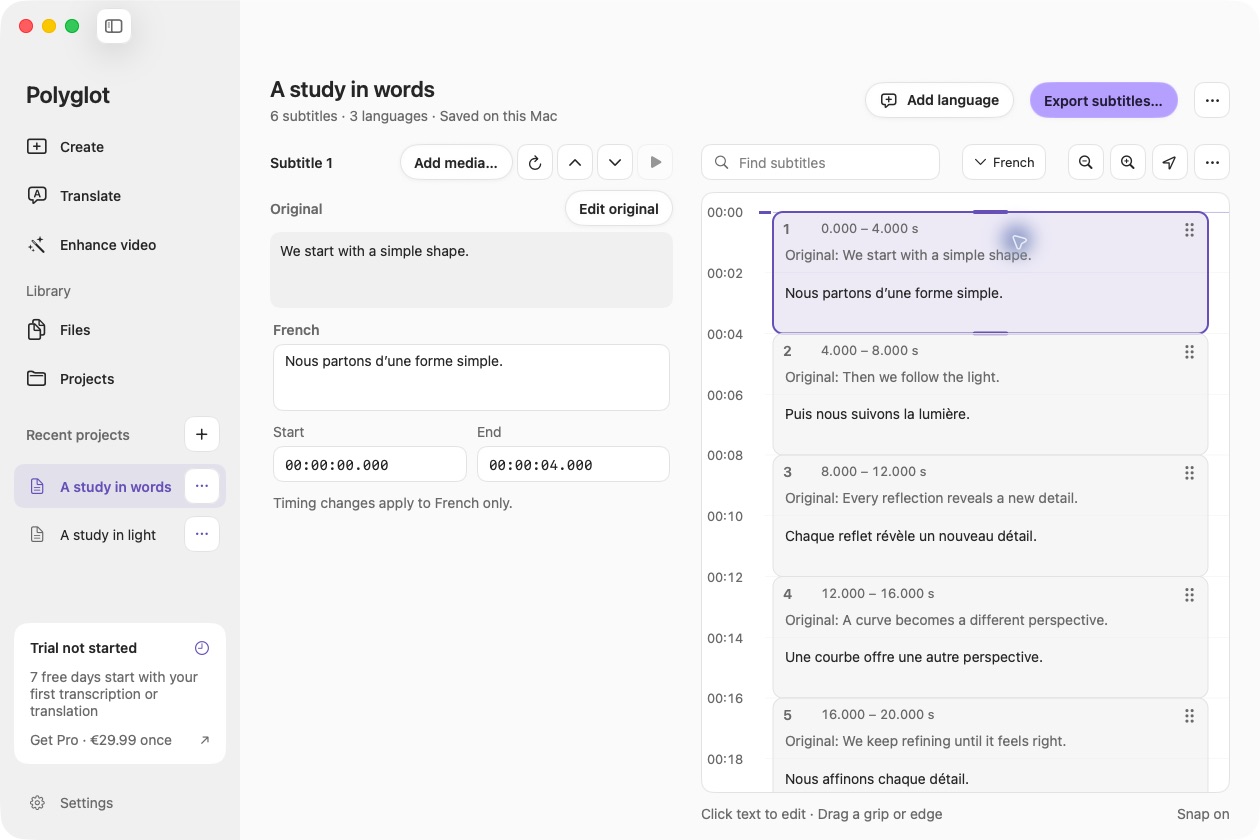
Open the SRT for the approved trailer in Polyglot and attach the matching video for review. Play across the signal change, check the wording against the performance and verify the cue boundaries. If the video editor has changed the shot order or replaced the voice take, identify the new render before adjusting the times. Export the reviewed SRT for the editor and keep the original. The editor handles any captions rendered into the video.
Watch the entire trailer with captions enabled. W3C’s caption guidance includes sounds a viewer needs to understand the scene. If an offscreen bell is the only warning that the barrier is about to fall, include that cue in the full caption pass. Keep it even if the bell never figures in your one-second samples. A preview can sell the bridge mechanic while the full trailer still needs to convey exactly what the dispatcher and the warning bell tell the player.
Check the actual loop when you can see it
On a store surface that shows the quick view, watch a complete loop muted. Compare it with the first visible trailer in the same language. Record the surface, language, trailer revision and the specific image and words that mislead. “Red lamp visible under ‘cross now’ in the English quick view” gives the editor a shot to find. “Captions broken on Steam” could send them looking for an upload setting.
If you can only view the full store trailer, record which local samples you checked and leave the generated loop marked unverified. When a revised preview is available, repeat the red-lamp check on that surface and play the full captioned trailer once more. The two observations answer different questions: what a shopper can infer from a glimpse, and what a viewer can follow through the entire scene.
Sources & further reading
Valve · Steam store trailers and microtrailers
W3C Web Accessibility Initiative · Captions and subtitles
Published by Polyglot using an AI-assisted editorial workflow. How we prepare and update our guides.
Keep exploring.
Try it on your Mac.
Find the right tools for your words and video, with processing on your Mac.
Download nowApple Silicon · macOS 14.4 or later