 Polyglot
The Polyglot journal
How do I turn SRT cues into Audacity labels?
An audio editor asks where the narrator says “Fold here.” You already have the line and its timing in an SRT. Give the editor a label they can click to select the whole phrase in Audacity.
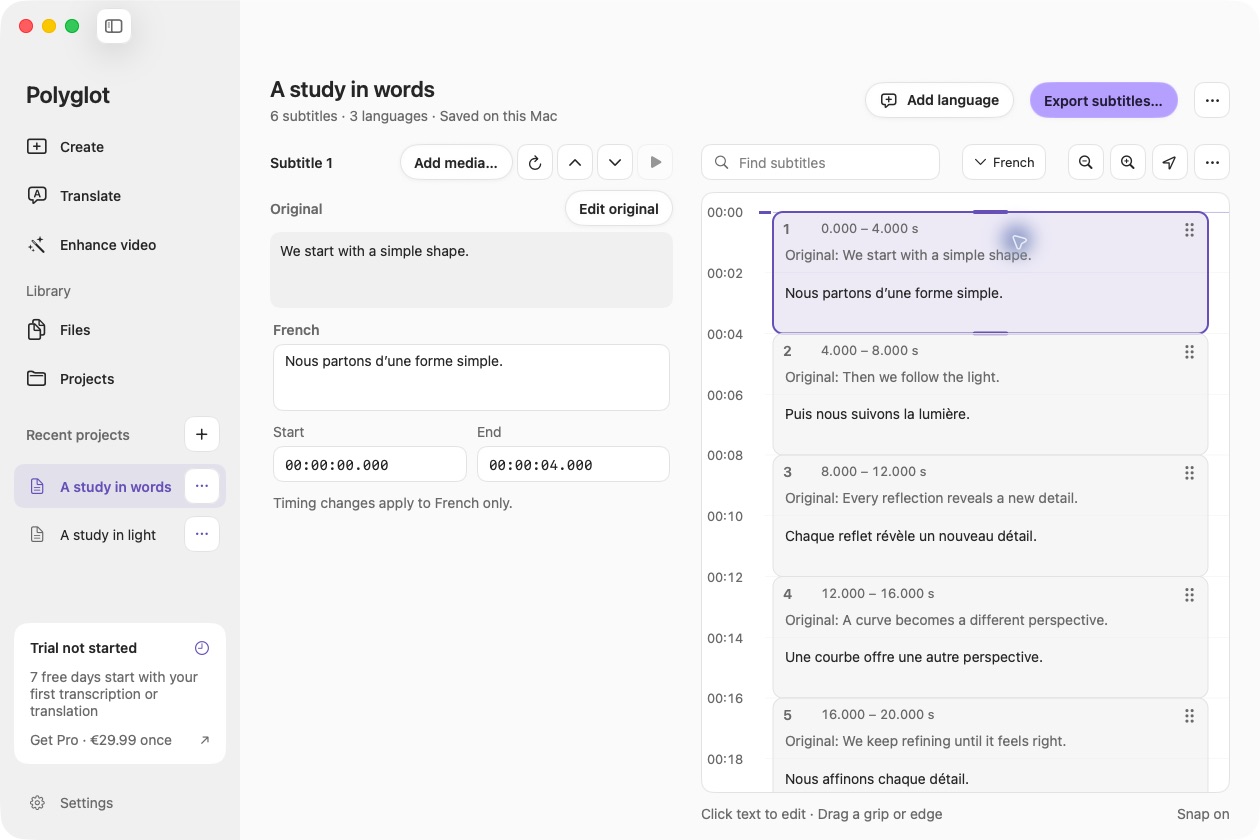
Polyglot 1.11 · Prepared sample project
Start with the same recording on both desks
Ask the editor for the name and revision of the audio open in Audacity. Use the SRT reviewed against that edit. A mastered file with a new introduction can contain exactly the right words at the wrong times. Listen to an identifiable phrase near the start and another near the end before preparing a long list.
Work from a copy of the reviewed subtitles. If you need to check a line in Polyglot, open the SRT and review its wording and boundaries against the matching media. Keep the original caption file for the player. The separate label file is a set of editorial selections, so it can contain just the lines the editor wants to hear. Share only text and audio cleared for that recipient.
Translate the two boundaries into seconds
Here is a fictional pair of cues from an origami demonstration. The first instruction crosses the one-minute mark. The second begins after a quiet fold. The editor wants to be able to replay each instruction without also selecting the silence between them.
For each SRT boundary, multiply the hours by 3,600 and the minutes by 60, then add the seconds and the fractional second. In cue 18, the end is 60 + 1 + 0.125 = 61.125 seconds. Apply the same calculation to the start and end separately. Audacity’s second column is the end position measured from the beginning of the project. Putting the duration there would give this row an end before its start.
18
00:00:59,750 --> 00:01:01,125
Fold here.

19
00:01:03,500 --> 00:01:05,000
Press flat.
Make a three-column label file
Copy the two rows below into a plain-text document and save it as fold-review.txt using UTF-8. Each row contains start seconds, end seconds and the label name, separated by actual tabs. A decimal point separates whole seconds from fractions. Leave out the SRT counter lines, timestamp arrows and blank lines. For a wrapped subtitle, join its text onto one line for the label and keep the original line breaks in the SRT.
For a short review list, the spoken phrase makes a good label. If the same words appear twice, add the cue number to the label name so the editor can report which occurrence they heard. Keep names brief. The Audacity manual advises keeping label text under 260 characters. For a longer passage, use a cue reference and a short identifying phrase.
59.750	61.125	Fold here.
63.500	65.000	Press flat.
Import the labels and audition the gap
In the Audacity project containing the matching master, choose File → Import → Labels and select fold-review.txt. Look below the existing tracks for the new label track. Click the first label to select its region and play that selection. In the example it should run for 1.375 seconds and cross the minute boundary. The next selection lasts 1.500 seconds. Neither selection includes the 2.375-second gap.
If selecting a label leaves only a cursor, inspect its two numbers. Equal start and end values make a point label, useful for a bookmark but too short for replaying a phrase. If the words fall just outside a selected region, first compare the caption with the sound. A caption may deliberately linger after speech. Shorten the editor’s selection if needed and keep that editorial change in the label track.
Hand back the file the editor can reuse
If every selection lands two seconds late, check for a trimmed introduction or an audio clip placed away from project time zero. If the first selection works and a later one misses, listen on both sides of the first discrepancy and check for a cut or a different take. A single offset cannot account for a section removed halfway through.
Send the label text file with the matching audio revision and a short acceptance check, in your own words. For this pair, play the first label through the end of “here.” Then click the second and listen for “Press flat.” If the editor returns revised labels, ask which track they exported. Audacity’s label export can combine several label tracks in one file. Check the row count and names before bringing a revised list into another project.
Sources & further reading
Audacity Manual · Importing and exporting labels
Audacity Manual · Label tracks and region selection
Library of Congress · SubRip Subtitle format
Published by Polyglot using an AI-assisted editorial workflow. How we prepare and update our guides.
Keep exploring.
Try it on your Mac.
Find the right tools for your words and video, with processing on your Mac.
Download nowApple Silicon · macOS 14.4 or later