 Polyglot
The Polyglot journal
Why is a language missing from my Kdenlive subtitle export?
Two languages in a Kdenlive project do not automatically become two selectable tracks in the finished video. Check which subtitle file is active, what its layers contain, and how the render delivers the text.
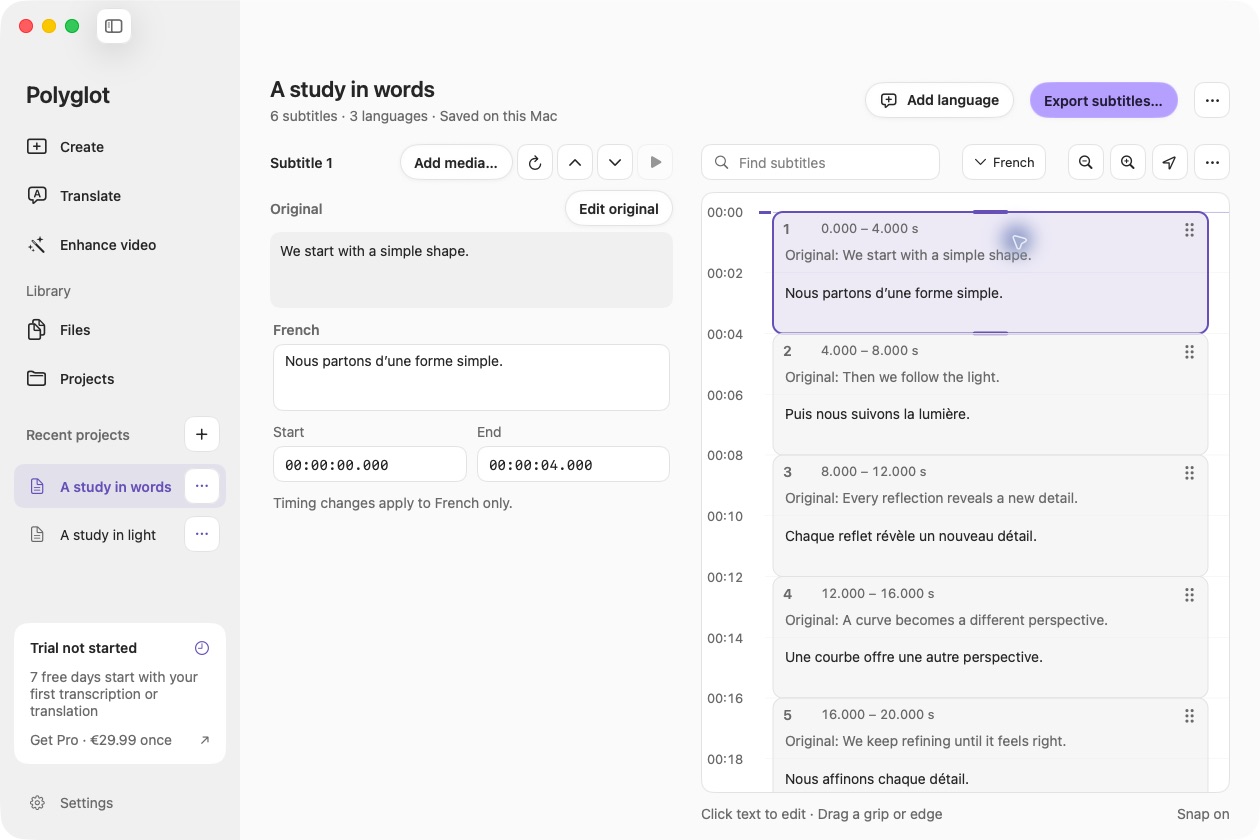
Polyglot 1.11 · Prepared sample project
Start with the subtitle file that is active
If your Kdenlive project contains English and French subtitles but the exported video shows only English, first open the Subtitle Manager. The Kdenlive manual says that only one subtitle file can be active and rendering uses that active file. Keeping two files in the project is useful for editing alternatives; it does not establish that both reached your delivery.
Before changing anything, save a separate project copy and keep the reviewed SRT files. Note the Kdenlive version, selected subtitle file and output filename. These instructions follow the online 26.08 manual. The example below is fictional and illustrates a diagnostic procedure; it is not a report of a tested Kdenlive render.
Decide whether the languages are alternatives or simultaneous text
A subtitle layer is part of a subtitle file. Kdenlive lets you create several layers, assign styles and move cues between them. Lower-numbered layers sit behind higher-numbered layers. That ordering concerns how text is drawn; it is not a language menu for the viewer. Two overlapping translations on separate layers can still be content within the same active file.
For a viewer who should choose English or French, retain a separate reviewed file for each language. For a deliberate bilingual picture, both languages need to appear together with readable placement. Write down which result you intend before moving or deleting a layer. Removing French because it overlaps English could destroy the intended bilingual version while doing nothing to create selectable languages.
Use one unmistakable cue to identify the problem
Imagine a six-second demonstration with an English cue, “Open the blue case,” from one to three seconds. Its illustrative French translation, “Ouvrez la boîte bleue,” occupies the same interval. From four to five seconds, the second pair reads “The key is inside” and “La clé est dedans.” Choose a moment in the first interval to identify the language, an empty moment between cues to check clearance, and a moment in the second cue to check that you have the right revision.
In the Subtitle Manager, inspect which file owns those events. If English and French are in different files, select the intended file and check the project monitor. If they occupy layers of one file, inspect each layer and its styles. The manual documents copying or moving a layer to another file through the manager. Work in your saved copy, and count and read the moved events afterward so the repair does not silently lose a cue.
Fictional review points
00:02 — first language cue
00:03.5 — empty gap
00:04.5 — second cue

Record for each output:
filename / selected language
visible words / captions off
Choose how the render carries the text
Kdenlive documents an “Embed subtitles instead of burning them in” option under the additional rendering options. It creates a subtitle stream when the container supports it; the manual gives MKV as an example. This option changes delivery of the active subtitles. It does not document automatically collecting every inactive language file into separate tracks.
For separate captioned language videos, select the English file, render to a distinct filename, and verify it before repeating for French. For one file with selectable languages, export the reviewed subtitle files separately and use a packaging workflow that explicitly includes each one. Our Matroska handoff guide covers that separate job. Do not infer success from two filenames in the editor or from the presence of a caption button.
If a render was already queued before you selected French, changing the project is insufficient evidence that the waiting job changed too. Kdenlive’s rendering guide says later project edits do not change a submitted job’s settings. Submit a fresh job with the intended selection and an unambiguous output name, then inspect that output.
Approve the delivered file outside the editor
Open the finished video in the intended receiving player. For a selectable delivery, turn captions off and confirm the picture has no unwanted text. Then choose each language explicitly and visit all three review points. Record the displayed words, not only the menu label: a French label paired with English text is still a failed delivery. Seek away and back to check that the selected language remains usable.
For a burned-in delivery, the intended words should remain visible when the player’s subtitle display is off. Check simultaneous layers for collisions over the actual picture. If the text itself needs correction, review a copy of the SRT locally in Polyglot and export a new file for the editor. Keep the Kdenlive project for its layer and style work; an SRT does not preserve that complete composition. Approval belongs to the delivered video and language combination, not merely to a successful render message.
Sources & further reading
Published by Polyglot using an AI-assisted editorial workflow. How we prepare and update our guides.
Keep exploring.
Try it on your Mac.
Find the right tools for your words and video, with processing on your Mac.
Download nowApple Silicon · macOS 14.4 or later