 Polyglot
The Polyglot journal
What happens to captions when you replace a Wistia video?
Replacing a video in Wistia can leave the same player on the same page while giving the video a new transcript. Before signing off, listen for a line that changed and turn on the captions your audience uses.
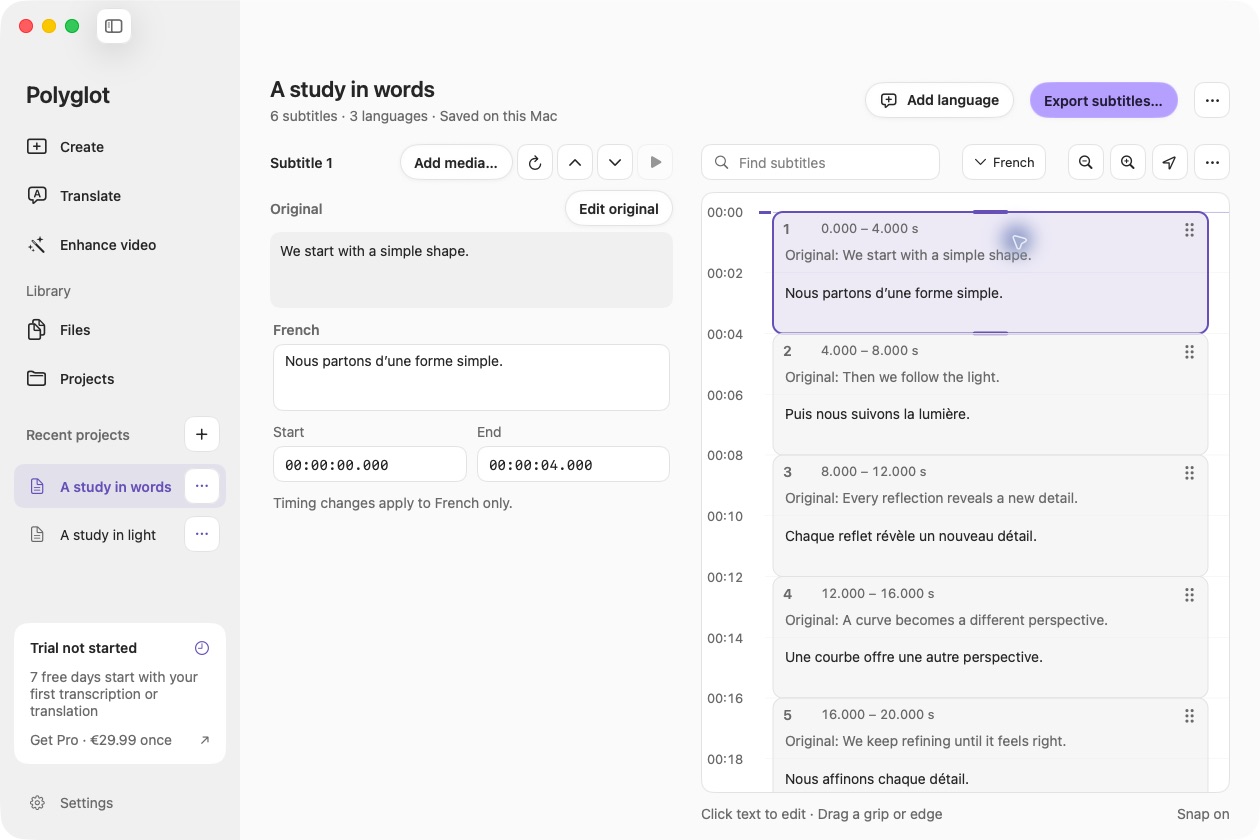
Polyglot 1.11 · Prepared sample project
Save the wording you already approved
Suppose you maintain a product tour on your company’s help page. Its captions use the correct spelling of a model name, and a translator has checked the instructions. The next cut changes just one demonstration. Before replacing the video, open the media page in Wistia and download the approved timed transcript. Save each published language separately. Keep those files with the cut they describe so another editor can recover a decision such as how to spell a name.
Write down the address of the help page and one moment that will identify the new cut by ear or sight. A title or thumbnail makes a poor identifier here. A custom thumbnail can survive replacement, and while Wistia processes the upload, visitors can still play the previous video.
Choose what happens to the original
Wistia offers two replacement actions. Overwrite keeps the media’s analytics together and suits a small correction. Swap gives the old video a separate ID in the same folder, along with its analytics. The replacement takes over the address used by existing embeds and starts its own stats. Choose Swap if you need to retain the original video in the account. Wistia describes replacement as irreversible.
With either choice, Wistia generates a transcript for the incoming file. A familiar player color, caption control or embed address tells you little about whether yesterday’s hand-corrected wording reached today’s viewer. Inspect each language you promise on the help page. Wistia’s replacement guide does not specify the fate of every previously uploaded language file.
Compare a line whose meaning changed
In this fictional tour, the narrator used to say “Press Pair twice.” The replacement says “Hold Pair until it flashes.” Both instructions start at twelve seconds and finish at fourteen. The product name in the opening and the closing instruction are the same. A reviewer who checks only the first and last cues could approve captions that tell the viewer to perform the wrong action.
Play through the changed demonstration with the old SRT open alongside it. Mark the replacement words and where they actually begin and end. Carry forward the approved spelling of Pair where the label still appears on screen. Give the translator both instructions and the replacement clip. A translation can fit its two-second slot perfectly and still describe two presses.
00:12–00:14
Old: Press Pair twice.
New:
Hold Pair until it flashes.
Decide which file needs the repair
Read the new transcript against the replacement audio. If the new instruction is correct and the only error is the spelling of Pair, edit that transcript in Wistia and save it. Transcript edits also change the corresponding selectable captions. If your approved file has many carefully reviewed names or sound cues, work on a copy of that file instead. In Polyglot you can open the SRT locally, revise the changed cues and export a separate file for the new cut.
Check the next spoken line after each edit. If the demonstration now lasts longer, downstream captions may need new boundaries even where the words are identical. In Wistia, use the transcript upload option for a reviewed SRT or VTT, check the detected language and save after validation. Wistia converts WebVTT uploads to SRT, so any placement needed to keep the Pair button visible deserves a check in the actual player.
Sign off from the page a viewer opens
Wait for replacement processing to finish, then open the help page in a private window. First play the demonstration with captions off. If you still hear “Press Pair twice,” investigate which video that page embeds before changing any captions. A separate copy in the Wistia library is independent of the media you replaced.
Once you hear the new line, enable captions and explicitly select the intended language. Watch through the action and the next instruction at normal speed. Repeat for each published language, recording the page URL, selected language, time and displayed line. If the new audio plays with the old instruction, send that exact combination to the person maintaining the track. If the clip and captions agree, leave the approved SRT with the replacement cut so the next editor knows which review it passed.
Sources & further reading
Wistia · Transcripts and Captions
Published by Polyglot using an AI-assisted editorial workflow. How we prepare and update our guides.
Keep exploring.
Try it on your Mac.
Find the right tools for your words and video, with processing on your Mac.
Download nowApple Silicon · macOS 14.4 or later